How to Stop Impulse Buying on Amazon: 7 Ways to Put the Pause Back
Amazon is very good at one thing: making a purchase take less effort than deciding not to. Your card and address are saved, Buy Now skips the cart, deals come with countdown timers, and "Frequently bought together" adds one more thing on the way out.
None of that is a character flaw on your part. It's design. The fix is design too: put a few steps back between wanting something and paying for it.
1. Turn Off 1-Click
1-Click lets a single button place an order with your saved card and address. Turning it off means at least one more screen before you pay. You'll find it in your account's 1-Click settings. Amazon moves its menus around, so if it isn't where you expect, search Amazon's help pages for "1-Click settings."
2. Use Save for Later as a Waiting Room
When something catches your eye, move it to Save for later in your cart, or add it to a list, instead of buying it. Then pick one day a week to look through it. Most things lose their pull within a few days, and whatever is still there a week later is usually something you actually want.
3. Mute the Deals
Lightning deals and limited-time offers come with a timer for a reason: a countdown makes waiting feel like losing. Turn off notifications for the Amazon Shopping app in your phone's settings, and unsubscribe from deal and recommendation emails with the link at the bottom of any of them. If you want a deal, you can go looking for one on your own schedule.
4. Look at Your Subscribe & Save Once a Month
Repeat deliveries are handy for things you really use up. They're also easy to forget about. Once a month, open Subscribe & Save, skip what you still have plenty of, and cancel what you've stopped using.
5. Watch the Payment Options at Checkout
Amazon's checkout can offer to split some purchases into monthly payments. A smaller number per month makes a big price easier to say yes to. If you're trying to spend less, treat that offer as a reason to pause, not a reason to buy.
6. Put a Pause in Front of Amazon's Checkout
This is where Not Yet: Checkout Blocker comes in. It's a free Chrome extension, and Amazon is in its Retail & Department Stores category, which starts checked. You can browse, track orders, and start returns as usual. When you reach Amazon's checkout, including the Buy Now flow that skips the cart, Not Yet covers the page with a pause screen. To continue, you retype a freshly generated code.
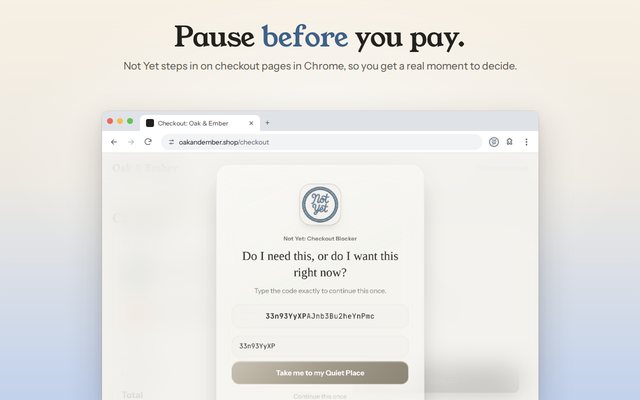
If you'd rather stop and think than type, switch the unlock to a few reflection questions, like "Will I still want this in 24 hours? In a week?", or to a short wait. Either way, the main button on the pause screen leads somewhere calmer instead: your Quiet Place.
7. Shield the Buy Now Button
Not Yet Premium adds an optional buy-button shield. On the stores you pick, it covers one-click buttons like Buy Now, plus wallet buttons, right on the product page, so the pause comes before you ever reach checkout.
Count What You Didn't Buy
When you walk away from a checkout, Not Yet can add the order total to a running "saved" number, and it can fill in the total from the checkout page for you. Watching that number grow is a better reward than the package would have been.
Safari for iPhone, iPad, and Mac is coming soon.