How to Block Shopping Sites on Chrome (Just the Checkout, or the Whole Site)
Most website blockers are all or nothing. Block a big store and you also lose tracking an order, starting a return, and reading reviews. For most people, browsing isn't the problem. Paying on impulse is.
Not Yet: Checkout Blocker is a free Chrome extension that lets you choose how strict to be, from pausing only the checkout to blocking a site outright. Here's each option, and how to set it up.
Option 1: Pause Only the Checkout
Pick the kinds of stores you want help with. There are 14 categories, from retail and clothing to food delivery, marketplaces, electronics, event tickets, and Buy Now, Pay Later. You can browse those stores as much as you like. When a checkout page or a payment form shows up, Not Yet covers it with a pause screen.
To continue, you retype a freshly generated code, character by character. It changes every time, so you can't memorize your way past it, and typing it takes just long enough to notice what you're about to do.
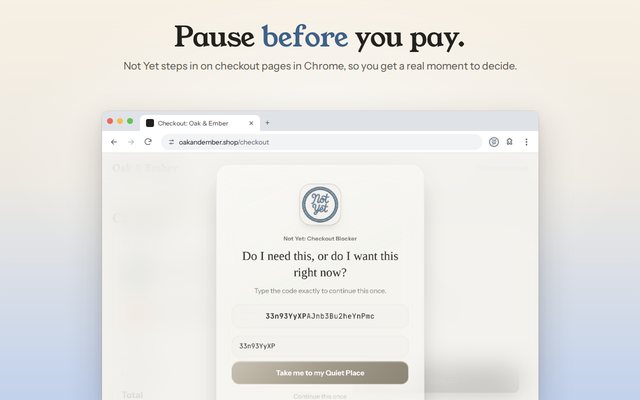
Automatic checkout detection is on from the start, so checkout pages on stores outside your categories get the same pause. If there's a site you never want paused, like the one where you pay your electric bill, add it to Sites to never pause.
Option 2: Block a Whole Site
Some stores are a problem long before the cart: the endless-scroll fashion sites, the deal-of-the-day pages, the one you open out of habit. Add those to Block these websites in Site Settings, and the pause screen shows on every page of that site, not just at checkout.
Option 3: Pause a Site for a While
For a sale weekend or a rough evening, Pause a site for a while blocks a site completely for 1 to 24 hours, browsing included. When the time is up it lifts itself, so there's nothing to remember to undo.
Option 4: Set a Time Limit
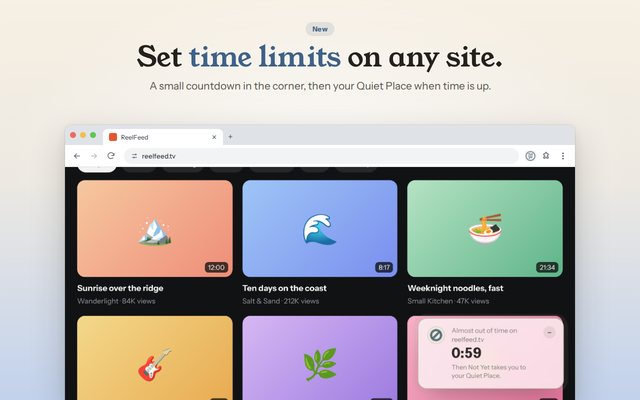
If the problem is the hours that disappear into browsing, set a time limit instead, anywhere from 1 to 240 minutes. A small countdown sits in the corner, and when it runs out, Not Yet takes you to your Quiet Place, a calm page with a few better things to do. You can pick the pause screen instead if you prefer.
Make It Hard to Undo in the Moment
Anything you set up can be switched off again, which is exactly what you'll want to do at 11pm with a full cart. Guard Mode, part of Not Yet Premium, puts a PIN in front of anything that makes the blocking weaker: turning off a category, removing a site, or switching to an easier unlock. Making things stricter never needs the PIN.
How to Set It Up in Chrome
- Add Not Yet: Checkout Blocker from the Chrome Web Store. It's free.
- The welcome guide opens on its own. Pick your categories (retail, clothing, and food delivery start checked) and add any sites you want blocked outright or never paused.
- Choose how a pause unlocks: retype a code (the default), answer a few reflection questions, or wait out a short timer.
- Pin Not Yet to the toolbar (click the puzzle piece, then the pin next to Not Yet) so its Settings are one click away.
Chrome keeps extensions out of Incognito windows unless you allow them. To cover Incognito too, open chrome://extensions, choose Details under Not Yet, and turn on Allow in Incognito.
What Chrome Can't Do on Its Own
Chrome doesn't have a setting that blocks a website for your own browsing. Its blocking tools are built for work computers that an IT department manages and for children's supervised accounts. An extension is the practical way to add a pause for yourself.
Not Yet doesn't need an account and doesn't send anything anywhere. It looks at a page's address, its button labels, and whether a payment form is showing, to tell a checkout from everything else. Your settings and history stay on your computer.
Safari for iPhone, iPad, and Mac is coming soon.